
Terminal
Terminal is a depth-of-market trading terminal. It is the one tool in Sentaro that is not a monitor: it connects to an exchange account with credentials you supply, and it places, cancels and closes real orders with real funds.
It trades across five venues on three exchanges:
| Venue | Exchange | Market |
|---|---|---|
| Hyperliquid | Hyperliquid | Perpetuals |
| Binance Perp | Binance | Perpetual futures |
| Binance Spot | Binance | Spot |
| Bybit Perp | Bybit | Perpetual futures |
| Bybit Spot | Bybit | Spot |
This is an unfinished proof of concept
Terminal is a test tool, not the product. It is known to be buggy, it is not the focus of development, and it can behave unexpectedly. Binance and Bybit support is newer than Hyperliquid support and correspondingly less proven.
It also trades real money:
- There is no confirmation step. A single click on the price ladder sends an order immediately. There is no "are you sure", no preview, and no undo.
- It needs trading credentials — a signer private key on Hyperliquid, an API key and secret with trade permission on Binance and Bybit.
- Losses are real and irreversible. A bug in a proof-of-concept order entry costs actual money.
If you use it, use an account you are willing to lose, and get familiar with the click behaviour on the smallest order size before doing anything else.
If you came to Sentaro to monitor the market, you never need to open this tool. Every other tool reads public data only, never asks for credentials, and cannot trade.
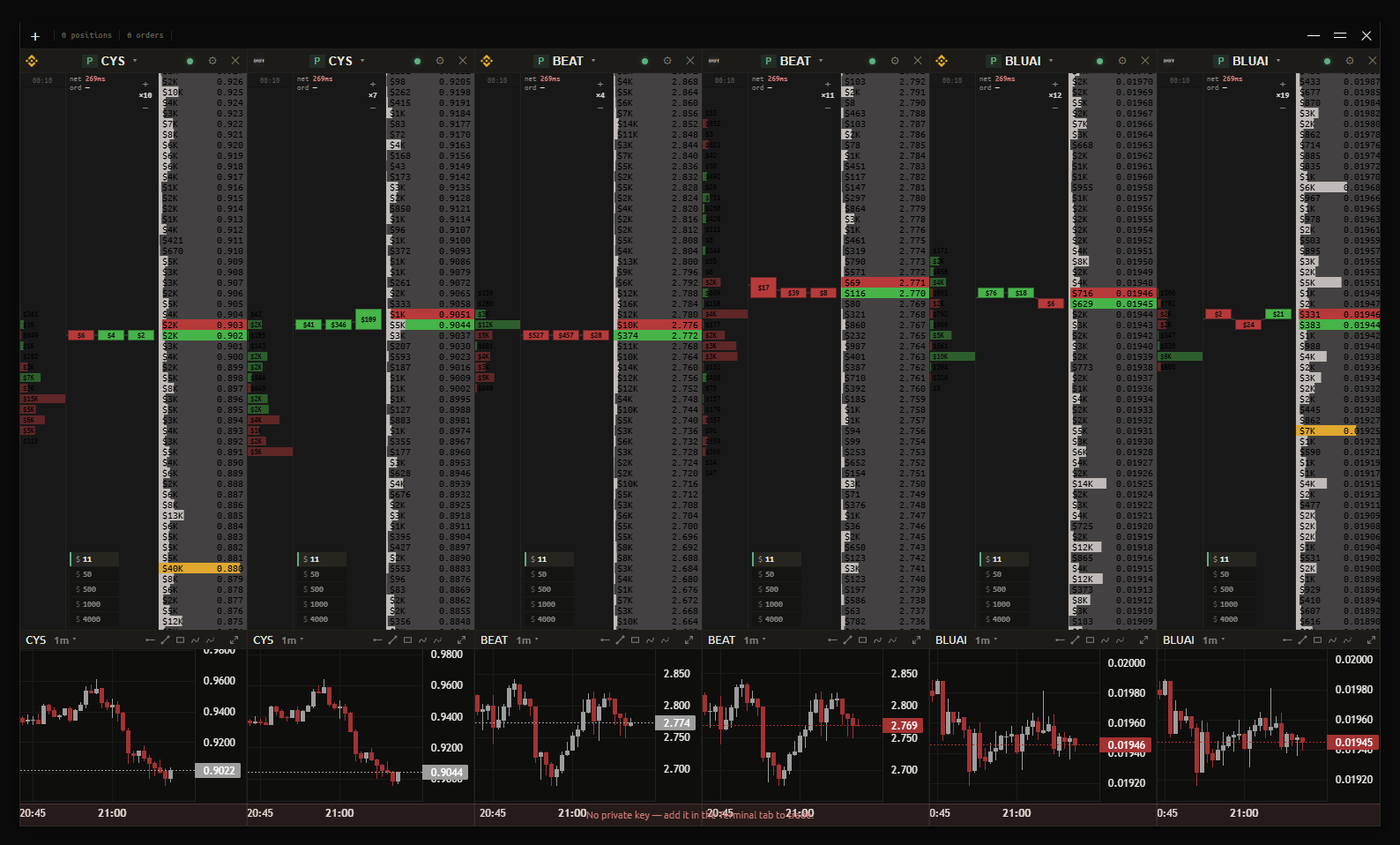
Everything below describes the app as it currently behaves. Because this tool is a proof of concept, expect it to change.
Setup
Open the Terminal tab in the main window. Settings are grouped into collapsible sections; open Exchange API keys first.
Exchange API keys
One credential per exchange. Each is stored in the OS credential store (Windows Credential Manager), never in Sentaro's settings file, and is used only by the terminal window.
Hyperliquid
Hyperliquid signs natively and takes two fields:
| Field | What it is |
|---|---|
| Private key | An API wallet private key — 0x…, 64 hex characters |
| Account address | 0x… — your main account or vault address |
The app's own guidance: an API wallet private key (Hyperliquid → API). Set the account address to your main account or vault when the key is an agent wallet.
Only the last 4 characters of the key are kept for display. The address is not a secret, so it is pre-filled when you edit the credential; the key never is.
Binance
| Field | What it is |
|---|---|
| API key | Your Binance API key |
| API secret | Its secret |
The app's own guidance: needs "Enable Futures" and "Enable Spot & Margin Trading". Never enable withdrawals.
Bybit
| Field | What it is |
|---|---|
| API key | Your Bybit API key |
| API secret | Its secret |
The app's own guidance: unified-account key with "Trade" permission. Never enable withdrawals.
Never enable withdrawal permission
Terminal only needs to trade. An API key with withdrawal rights turns any bug, any leaked settings file, or any compromise of your machine into a drained account rather than a bad trade.
Sentaro never asks for withdrawal permission and has no feature that uses it.
Test
Binance and Bybit credentials have a Test (⟳) button. This is worth using — it is not a format check. It pushes the key into the market-data worker and runs a real authenticated balance request, so a bad key, a missing trade permission or a skewed system clock surfaces here instead of at the moment you try to trade.
Each exchange id is reported on its own line, because one key can be enabled for futures but not spot.
Removing a key
The ✕ button deletes the credential from the OS credential store and clears it out of any worker already holding it, so a removed key cannot keep working until the next reload.
Upgrading from an older build
Earlier versions kept up to five named Hyperliquid accounts with an active selection. That collapsed into the single per-exchange credential above.
On first launch the active account's key and address are migrated across automatically. The other accounts' keys are not deleted — they remain in the OS credential store under their old ids, unreachable from the interface but recoverable by hand. Their ids are written to the app log once, at migration time.
Order
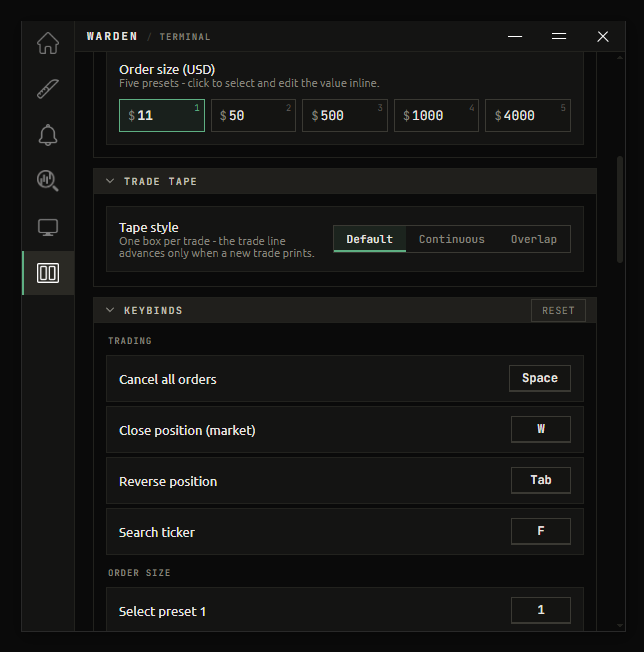
Order size (USD)
Five editable presets for the notional dollar size placed per click. Defaults: $11, $50, $500, $1000, $4000.
Click a preset to select it and edit its value inline. The selected preset is the size every click will use, and presets are also selectable by keyboard — see Keybinds.
WARNING
The active preset applies to every click on the ladder. Changing it changes the size of your next order — check which preset is active before you click.
Trade tape
Tape style
How trade prints are laid out on the tape.
| Option | Behaviour |
|---|---|
| Default | One box per trade — the trade line advances only when a new trade prints. |
| Continuous | Evenly spaced slots, but the whole trade line moves continuously. |
| Overlap | Each trade is placed at its real elapsed time, so trades overlap. |
Tape speed
How long a trade line takes to move out of sight. Range 1 to 15 seconds, default 7.
Only shown for the Continuous and Overlap styles — the Default style advances on prints rather than on time, so speed does not apply.
Trading
Choosing a venue
Venue is set per panel, from the venue button in the panel header. You can have several panels open on different venues at once.
Switching venue while keeping the current coin falls back to that venue's USDT pair. Picking a market from the search instead carries its real symbol, so non-USDT pairs like ETH/BTC or SOL/USDC work rather than being silently rewritten to the USDT pair.
Click-to-trade
The price ladder is the order entry. Where you click, and which mouse button you use, determines both the side and the order type:
| Action | Row position | Result |
|---|---|---|
| Left click | On the ask side (above the spread) | Market buy |
| Left click | On the bid side or in the spread | Limit buy at that price |
| Right click | On the bid side (below the spread) | Market sell |
| Right click | On the ask side or in the spread | Limit sell at that price |
In short: left click buys, right click sells. Clicking across the spread — buying into asks or selling into bids — crosses the book and executes immediately as a market order. Clicking on your own side rests a limit order.
Market orders are sent as immediate-or-cancel, swept through the opposite side of the book.
Orders fire on click with no confirmation. Repeat clicks within 120ms are ignored, which prevents an accidental double-fire but does nothing to stop a deliberate second click.
A newly placed order is drawn on the ladder immediately as a ghost order, before the exchange has confirmed it, so you can see what you just sent. Errors surface as a toast in the window.
SL / TP
Hold the Place SL / TP at row key (default A) and click a ladder row to set a stop-loss or take-profit at that price.
Existing SL/TP markers have a grip on the side strip you can drag to move them. On release the trigger is replaced at the row under the cursor — the new trigger is placed first, then the old one cancelled. Dragging a trigger across your entry price flips SL ↔ TP automatically, so the trigger condition stays correct.
Trigger entry
Hold the Arm trigger entry at row key (default S) and click a ladder row to arm an entry that fires when price reaches it. Left click arms a buy, right click arms a sell.
Keybinds
Every shortcut below is rebindable: open the Keybinds section, click a key button, then press the new key. Esc cancels. A Reset button restores all defaults.
Bindings are stored as physical key positions, so they survive a keyboard layout change.
Trading
| Action | Default |
|---|---|
| Cancel all orders | Space |
| Close position (market) | W |
| Reverse position | Tab |
| Search ticker | F |
WARNING
Cancel all, close position and reverse position act immediately on the active credential, with no confirmation.
Order size
| Action | Default |
|---|---|
| Select preset 1–5 | 1 … 5 |
Ladder
| Action | Default |
|---|---|
| Re-center on best bid/ask | Shift (left) |
| Larger price step | = |
| Smaller price step | - |
| Adjust price step | R + scroll |
| Adjust volume-bar cap | D + scroll |
| Place SL / TP at row | A + click |
| Arm trigger entry at row | S + click / right-click |
Chart drawing shortcuts — ray, line, magnet — are not set here. They live in the Home tab; see Charts & drawing.
Appearance
The Appearance section restyles the ladder. A Reset button restores every value on this page to its default.
Layout
| Setting | What it does | Range | Default |
|---|---|---|---|
| Text size | Price-ladder row font size | 9–18px | 12px |
| Row height | Price-ladder row height | 8–20px | 12px |
| Big-volume threshold | Depth-bar fill % that switches to the "Volume big" color | 10–95%, 5 steps | 60% |
A depth bar at 100% fill always uses the Volume full color regardless of this threshold.
Colors
Background is a single color for the order-book background (default #181818). It keeps its opacity inside the hex like the rest of the app.
Everything else is grouped, and each entry stores its color and its opacity as two separate values — which is why this panel, alone in Sentaro, shows a percentage next to every entry:
| Group | Entries |
|---|---|
| Order book | Bid, Ask, Best bid, Best ask, Price |
| Volume bars | Volume bar, Volume big, Volume full |
| Position & orders | Placed order, Stop-loss, Take-profit, Position +PnL, Position −PnL |
| Trade tape | Tape buy, Tape sell |
| General | Text, Row hover |
The three volume-bar colors form a progression: a depth bar uses Volume bar below the big-volume threshold, Volume big above it, and Volume full when it fills the row completely. Setting them to three distinct colors makes relative depth readable at a glance.
Position +PnL and Position −PnL fill the position band depending on whether the position is currently in profit or loss.
Per-ticker view settings
Price step and volume-bar cap are saved per coin, not globally — adjusting the ladder for BTC does not change how ETH is displayed. These are set from the window with the ladder keybinds above, not from the settings tab.
Related
- Getting started — the rest of Sentaro, none of which requires credentials or can place trades